Analytics
October 22, 2026
AI marketing dashboard: key benefits & how to build one



For most teams, the monthly report means logging in to five ad accounts, exporting the numbers, and writing the same summary by hand. Today, an AI marketing dashboard can do all that work for you in a fraction of the time.
It pulls data from tools like Google Ads, Meta Ads, and GA4 into one live view, and then uses AI to write summaries, point out changes, and build charts when you type a request. According to the HubSpot 2026 State of Marketing report, one-third of marketers said AI saves their team more than 15 hours (or about two workdays) a week.
This guide covers what an AI dashboard does, which metrics to track, four templates, and a five-step build. It also covers the mistakes AI dashboards make and how to catch them.
A dashboard shows your current marketing metrics on one screen. That’s the main difference between a dashboard and a report, since a report explains a past period in detail. On a standard dashboard, you still have to work out what the numbers mean yourself.
An AI marketing dashboard does part of the reporting work for you, using AI features that fall into four categories: summaries, anomaly detection, plain-English questions, and forecasts. Each one saves a different kind of time, and the sections below cover them in that order.
AI summaries read the numbers on your dashboard and explain them in plain words. A good summary says what changed, by how much, and which campaign caused the change.
For agencies, this is the most useful feature, especially since most clients read the text before they look at any chart. In-house teams use AI summaries to send a weekly update to leadership without writing it themselves.
Anomaly detection compares each new number with the normal range for that metric. When a number falls outside that range, the tool flags it. For example, it can tell you that cost per click on one campaign rose 40% overnight.
This feature helps most with paid media. A campaign with a wrong setting can spend a lot of money before anyone looks. Trend detection does the same job over a longer period, such as a slow drop in conversion rate over six weeks.
Natural-language querying lets you type a question and get an answer from your data. For example, you can ask which campaign had the lowest cost per lead last month. You don't need to know where the metric lives or how to build a filter.
Some tools do this inside the dashboard, while others link your data to an AI assistant through an MCP connector—a standard way to give AI tools outside data. Reporting Ninja's MCP connector works this way with Claude, ChatGPT, Copilot, and other MCP clients.
Forecasting uses past data to estimate where a metric will land. For example, it can estimate how many leads a campaign will bring in by the end of the month. That gives you time to change the budget while the month is still running.
Every forecast has a margin of error, so plan around a range of outcomes. For instance, a forecast built on two weeks of sale data may mislead you, because sale weeks are not normal weeks.
The right mix of features depends on who reads your dashboard. The table below shows what each feature changes and who gets the most from it.
AI speeds up the analysis, but you still need a clear way to analyze marketing data. Without one, you won't know which questions to ask the AI.
Every AI dashboard for marketing needs metrics that link (ad) spend to revenue. Traffic and engagement metrics explain why those numbers change, so they belong there too. Keep everything else off the main screen, because each extra chart is one more thing the AI summary has to explain.
An executive view needs five to seven metrics that link spend to revenue, such as spend, CAC, ROAS, and revenue. A working dashboard can hold more detail, such as cost per click by campaign. Keep the two apart, because their readers make different decisions.
If your team mixes up KPIs and metrics, sort that out first. A KPI is a metric tied to a business goal. Only KPIs belong on the executive view.
Acquisition metrics show how many people reach your site and where they come from. The main ones are sessions, new users, and traffic by channel from GA4. Add clicks and impressions from Google Search Console for organic search.
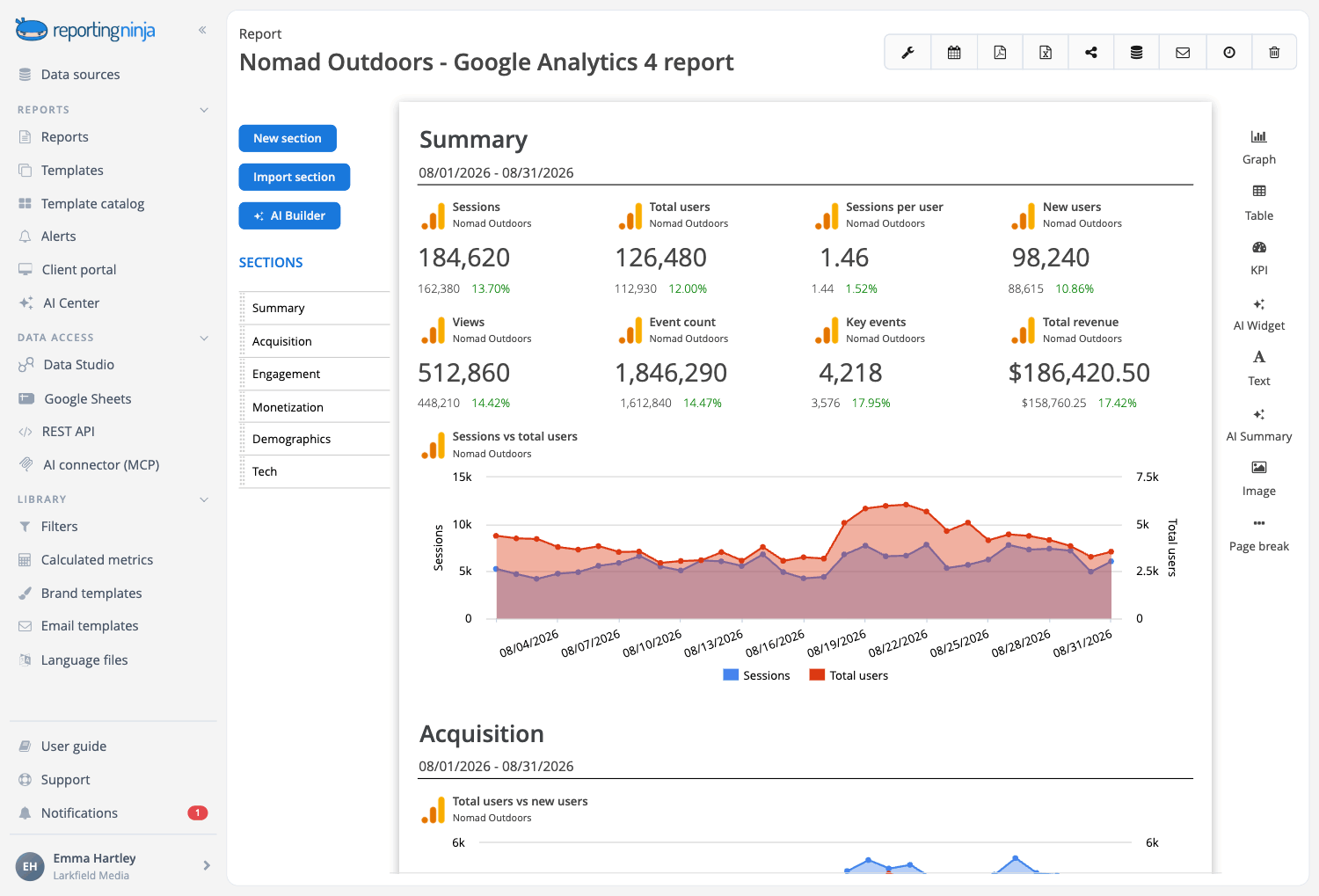
These metrics show whether campaigns bring in visitors, but not whether those visitors buy. An AI summary helps here, because it can help you identify the channel behind a traffic drop.
Spend, CAC, and ROAS show whether your marketing earns back what it costs. CAC is total marketing spend divided by the number of new customers. ROAS is ad revenue divided by ad spend, so a ROAS of 4 means $4 back for every $1 spent.
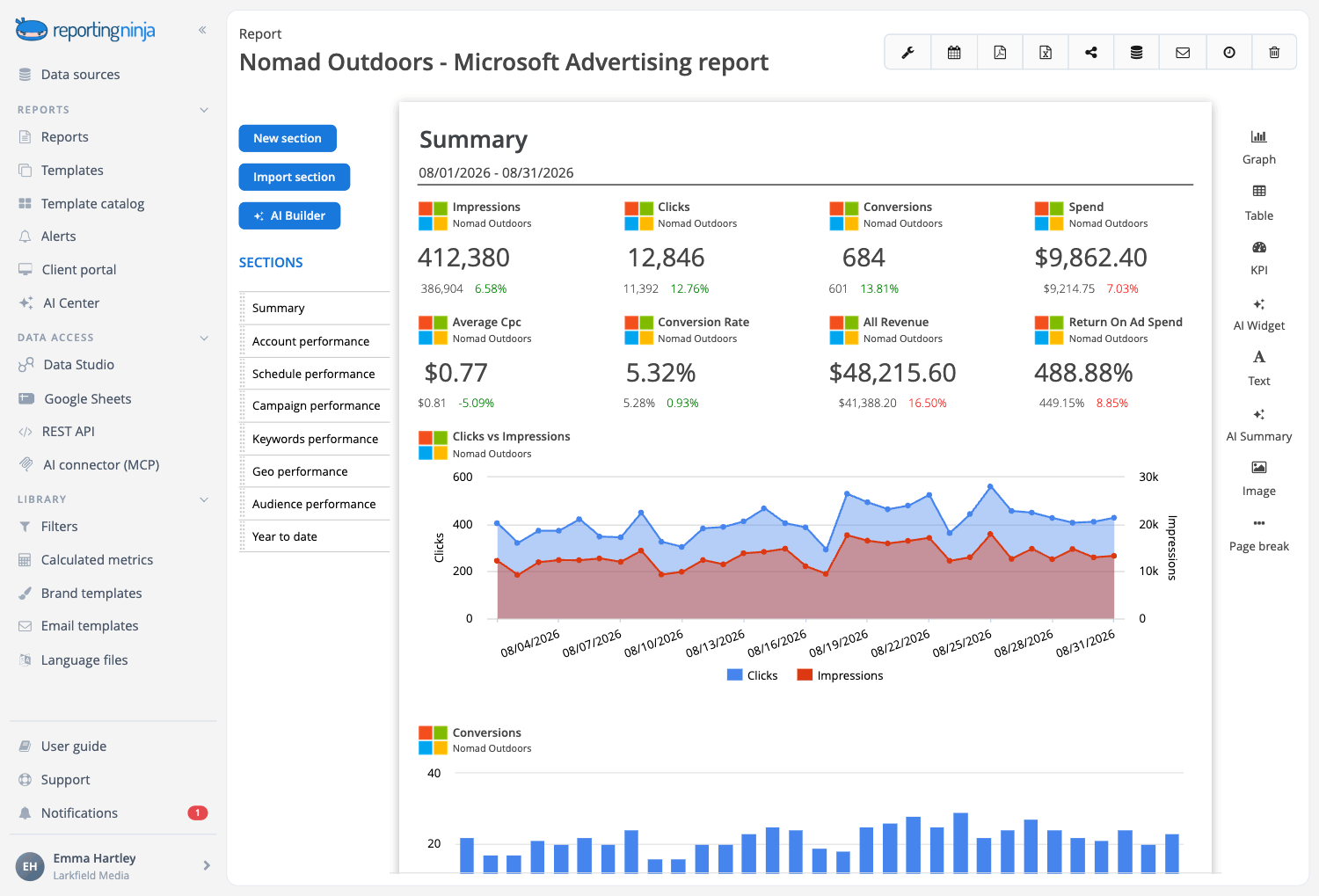
ROI uses the same idea but counts all costs, such as tools, salaries, and agency fees. In the HubSpot report, 33% of marketers named measuring ROI as their top challenge. Your CFO will read these numbers first, so put them at the top of the executive view.
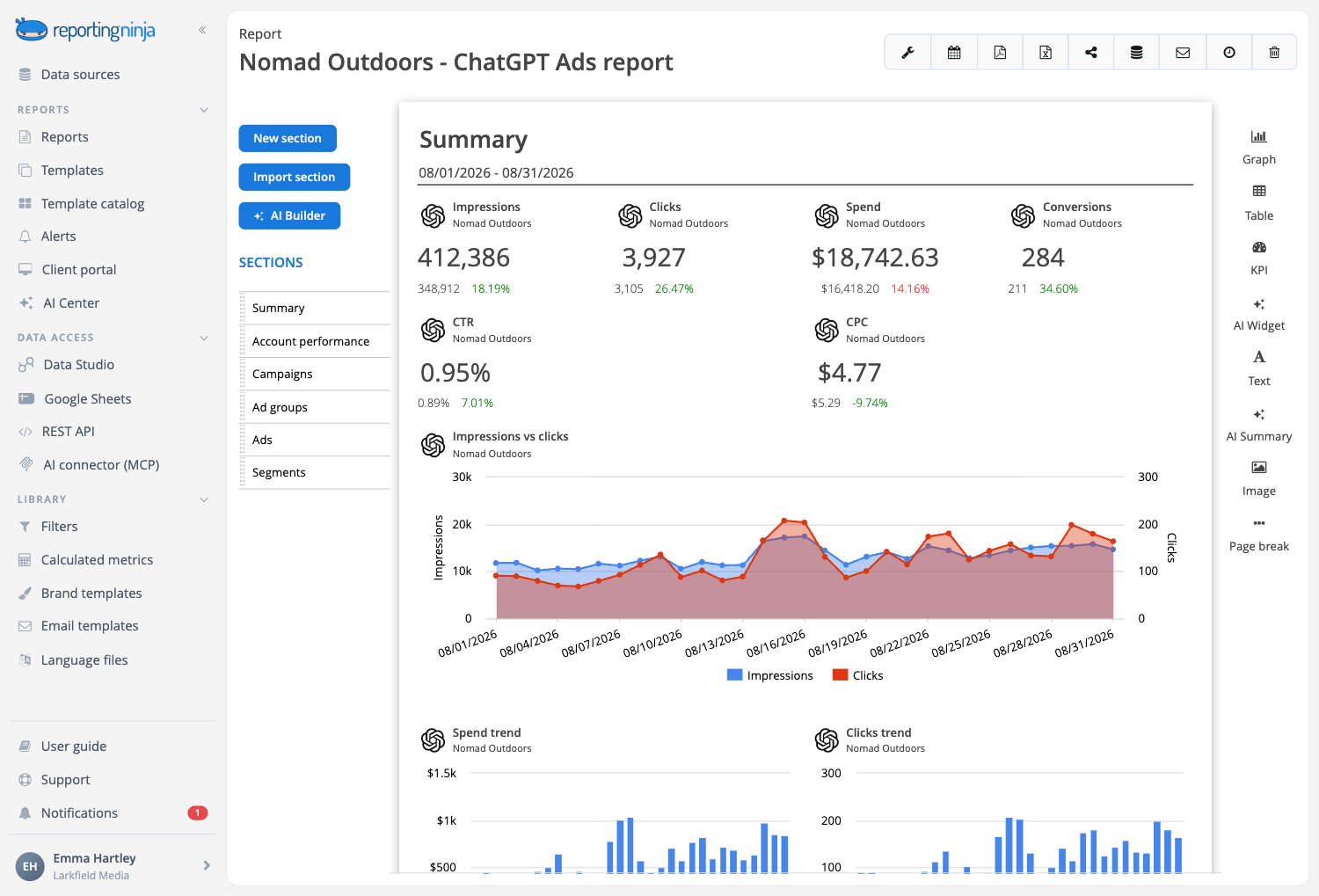
Conversion metrics show how many visitors take the action you want, such as buying or filling in a form. For B2B SaaS, the main numbers are leads, qualified leads, and pipeline value from a CRM like HubSpot.
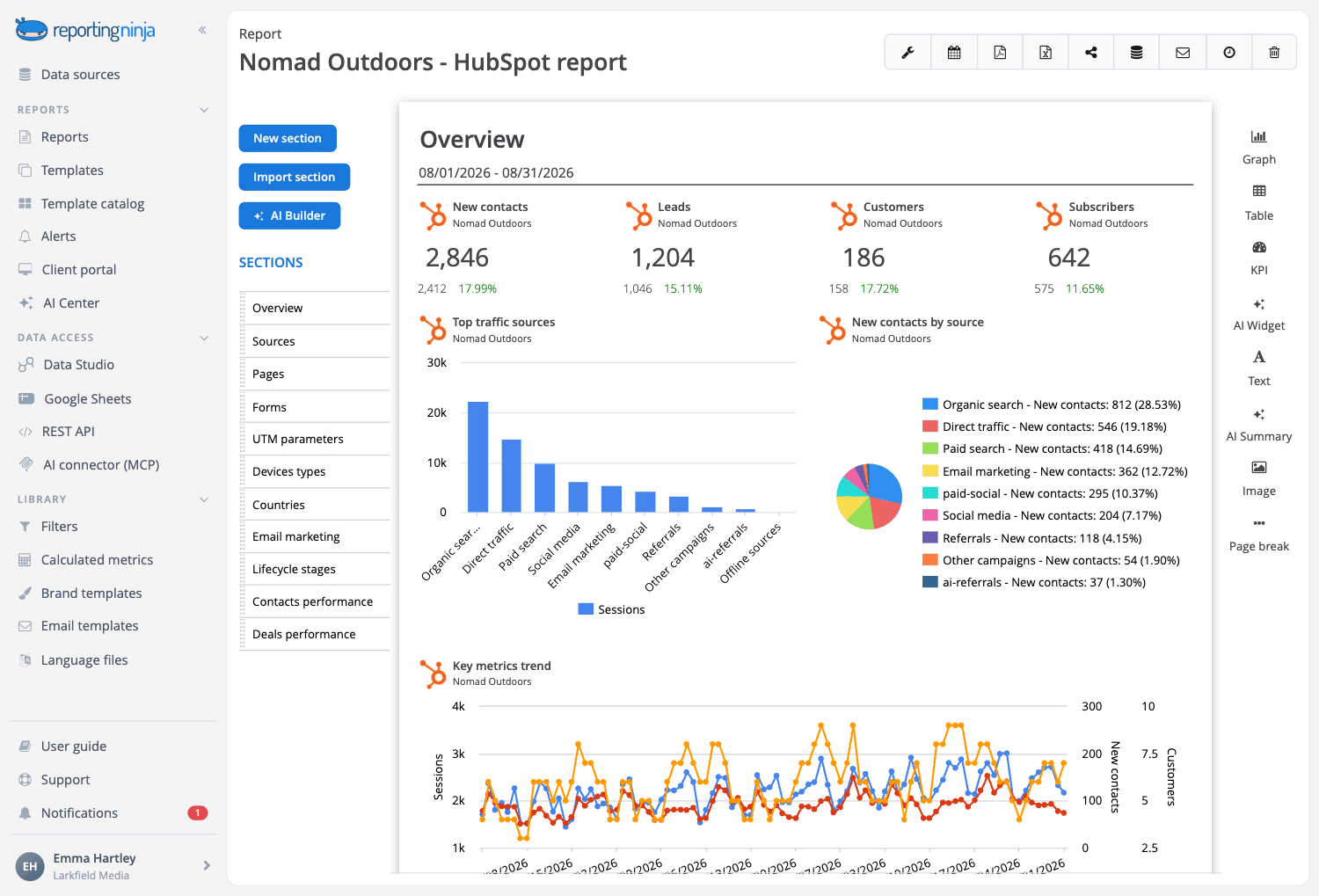
For ecommerce, the main numbers are orders, revenue, and average order value from a store platform like Shopify. Agencies should match each client's business model, because a SaaS client and a store owner judge success by different numbers.
Engagement metrics show how people interact with your content after they find it. Examples include engagement rate on social posts, email open and click rates, and time on page. Retention metrics, such as repeat purchase rate and churn, show whether customers stay.
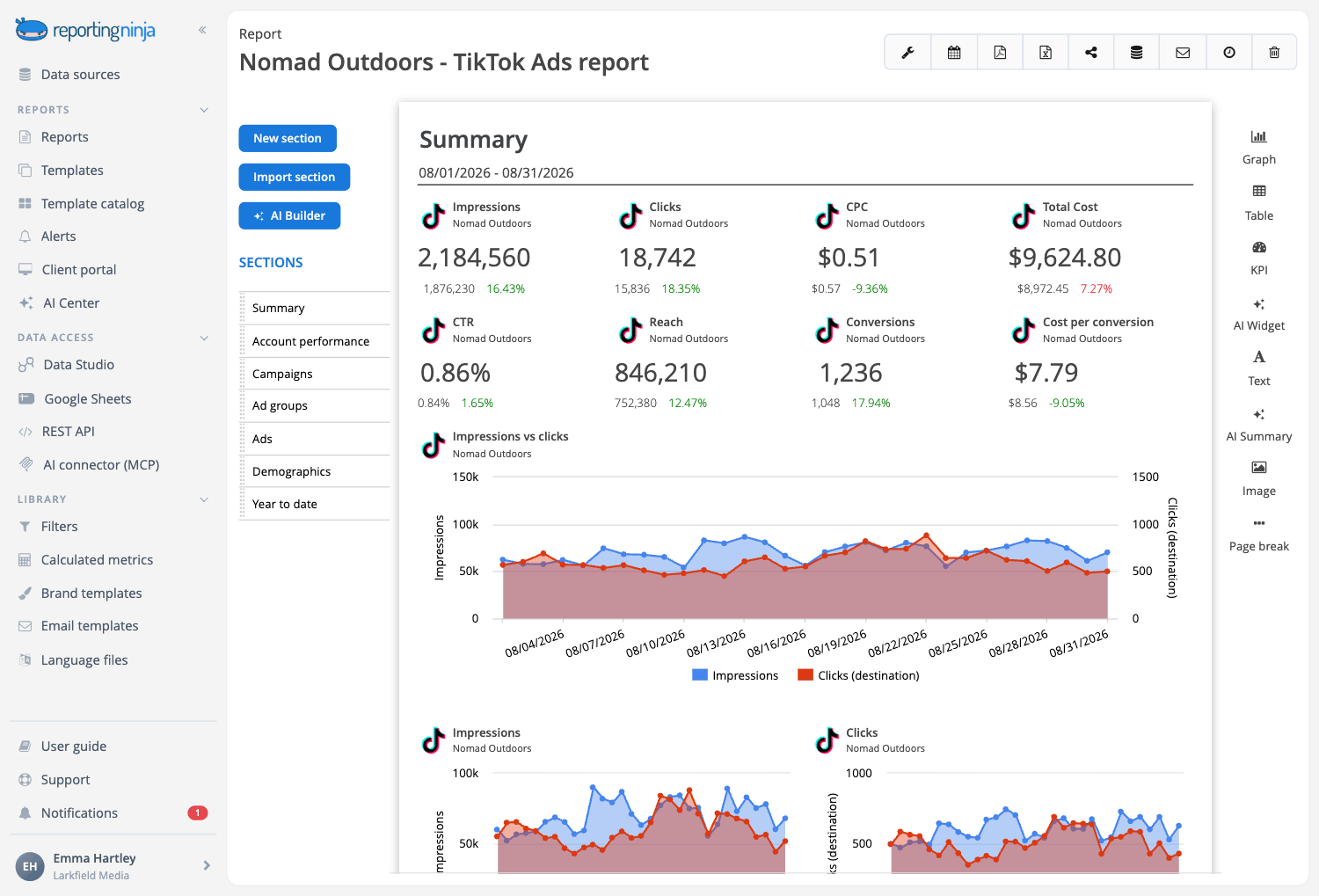
These metrics belong on a working dashboard more than an executive one. The exception is a business where retention is a company goal, such as a subscription business.
You need one of four dashboard types to begin with: an executive overview, a paid media dashboard, a cross-channel dashboard, or an agency client dashboard. The right one depends on who reads it and what they decide with it.
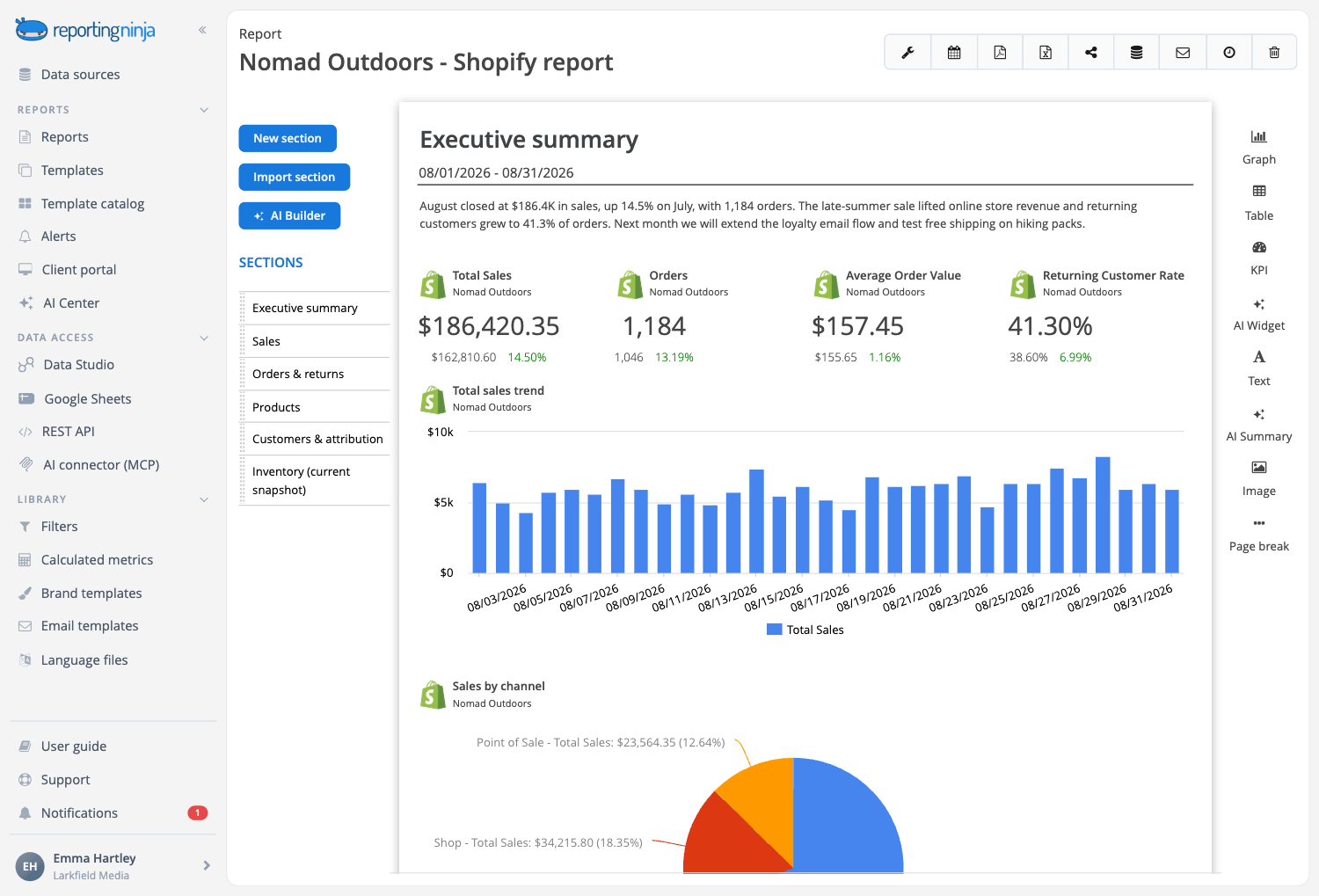
Keep this dashboard to one screen with no more than seven metrics. Put an AI summary at the top, because in our experience executives read the summary before dissecting a chart. Compare every number with the previous period so the reader can see which way it moved.
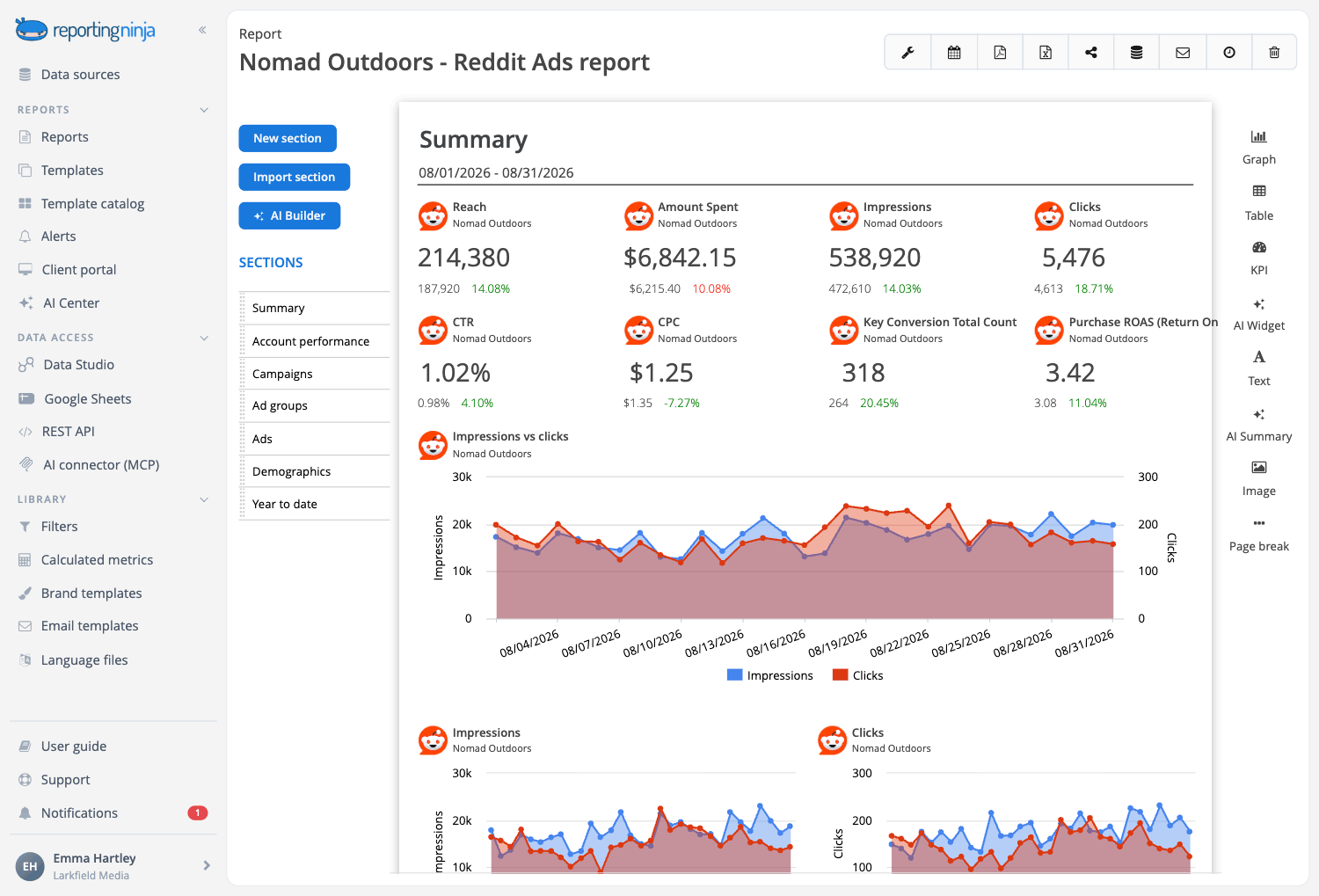
Alerts help most on this dashboard, because a sudden rise in spending on one campaign can use up a budget fast. Show the data by platform first and then by campaign. That way, you can see which ad account caused a change.
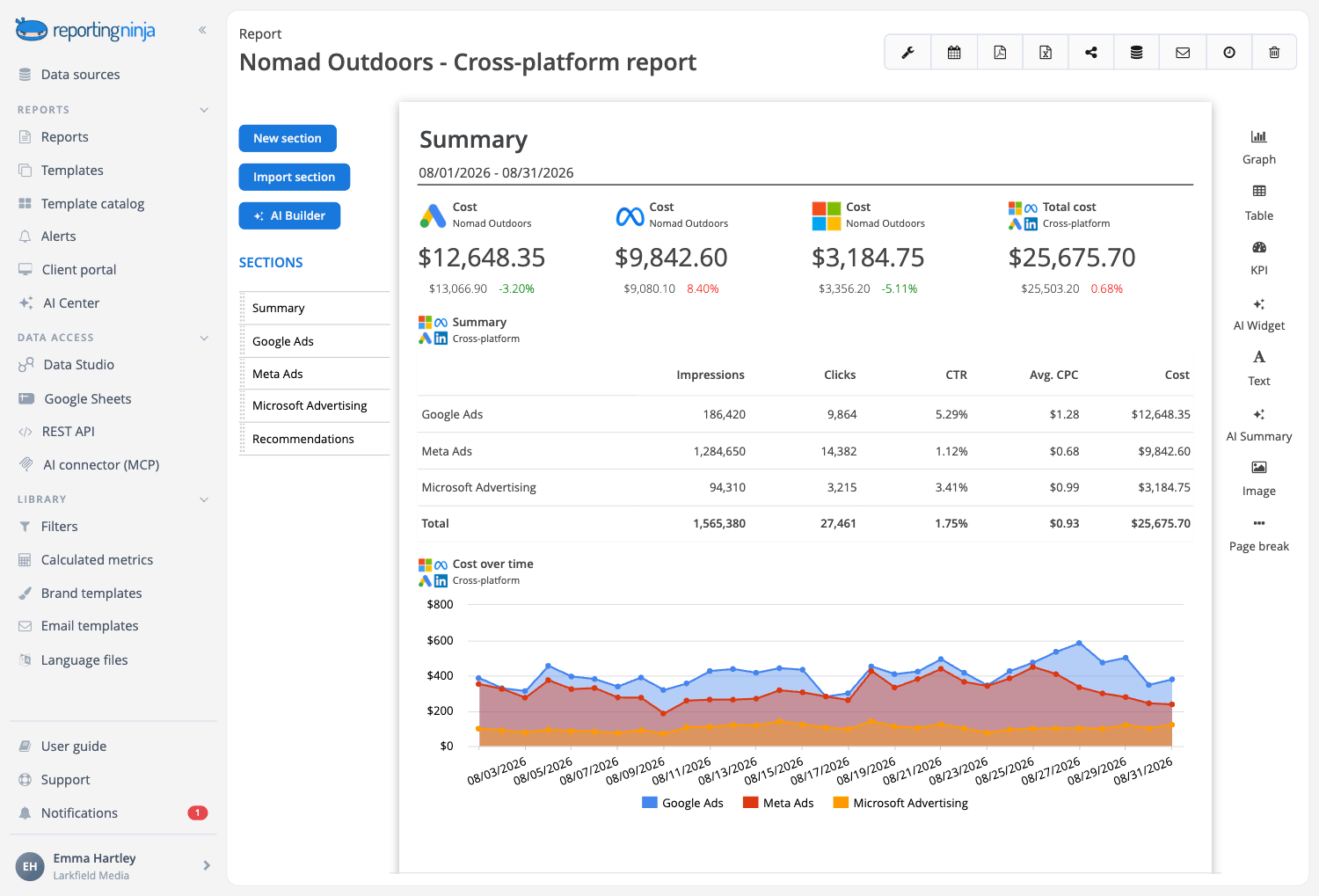
This dashboard is the hardest one to build by hand. It needs ad data, GA4 data, and CRM data in the same view. If organic search is a main channel, you also need to add the metrics from a custom SEO dashboard, such as clicks and average position.
We built Reporting Ninja’s cross platform reporting tool for situations like this one.
It brings data from multiple marketing platforms into a single dashboard, so you can:
If you want to simplify cross-channel reporting, try Reporting Ninja free for 15 days. You don’t need a credit card to get started. And you can use the data everywhere you work—from your client portal to Google Sheets to Data Studio, and even your AI assistant.
{{cta-block-v1}}
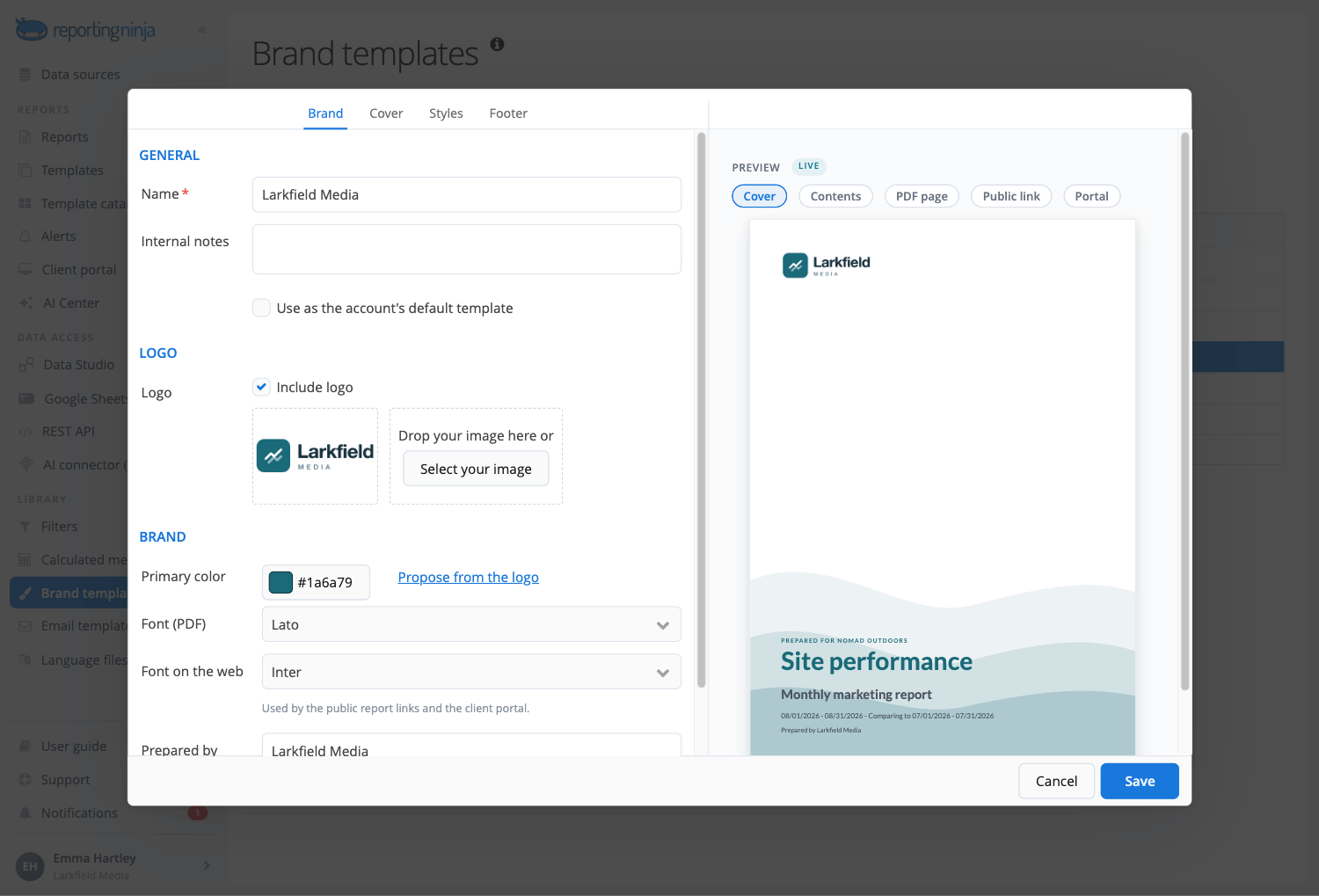
Put your agency's logo and colors on this dashboard, and share it through a branded client portal. Reporting Ninja supports white-label branding and a client portal on your own domain. Clients log in there to see their reports whenever they need them.
Start from a template: Reporting Ninja includes ready-made templates for each data source. Start a 15-day free trial, and build your first dashboard from one.
Building an AI marketing dashboard takes five steps, and the order matters. You define the questions first, because they decide which data you connect and which metrics you show. The AI features come last, since they can only explain the data you have set up.
Start by writing down the three to five questions the dashboard must answer. A paid media lead might ask which campaigns are over budget this week. A CMO might ask whether marketing spend produced revenue this month.
Each question points to the metrics you need, so the list keeps the dashboard focused. If a metric doesn't help answer one of your questions, leave it off.
Next, decide who will read the dashboard. A client, a CEO, and a PPC manager need different metrics and levels of detail. When one dashboard tries to serve all three, none of them can find what they need.
Last, note how often each reader needs the answer. Weekly questions belong on a working dashboard, while monthly questions belong in an executive view or a scheduled report.
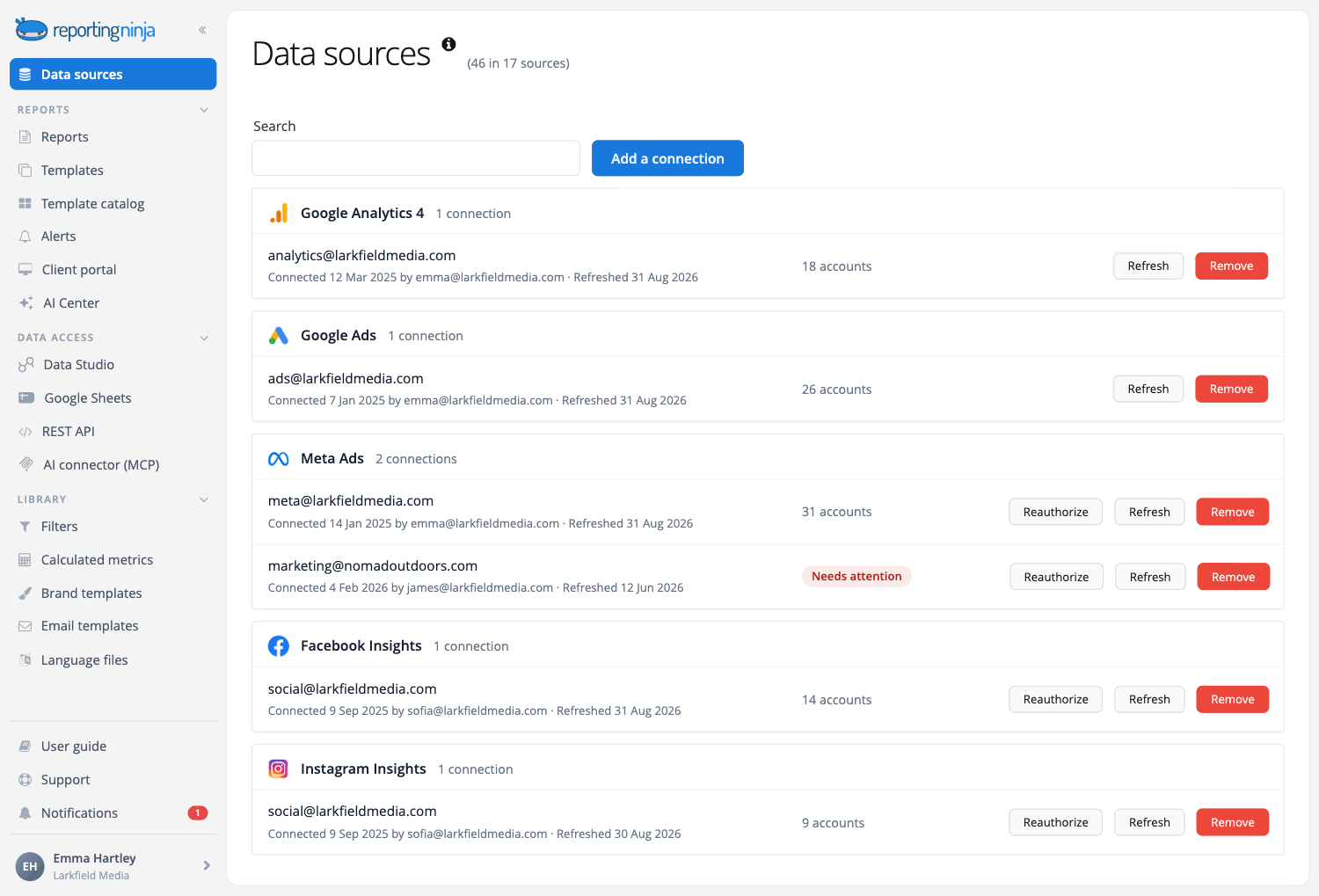
Connect every account that holds part of the answer to your questions. Most teams need an ad platform, GA4 for site behavior, a CRM like HubSpot for leads, and their social accounts.
In our experience, this is the step where do-it-yourself setups fail most often. If you connect each platform to an AI tool on its own, you have to manage a separate login and access token for each one. One platform update can then stop that data from updating until someone fixes it.
This step is worth the effort. The Salesforce 2026 State of Marketing report surveyed 4,450 marketing decision makers. It found that high-performing marketers are 2.4 times more likely to have unified their data sources.
A no-code reporting tool handles these connections for you. In Reporting Ninja, you connect each account once, and all the data lands in the same report. Sources include Google Ads, Meta Ads, GA4, LinkedIn Ads, HubSpot, Shopify, and Klaviyo, and you can add your own data from Google Sheets or Excel.
Some data sits outside the main ad and analytics platforms. In that case, plan your marketing data integration first, so you know how to add sources that have no direct connector.
Pick five to seven metrics for each view, using your questions from Step 1. Place the metric that answers your most important question at the top of the screen.
Then pick a chart type for each metric. Use a line chart for a trend over time and a bar chart to compare channels or campaigns. Show your main KPIs as single numbers with a percentage change, and put detailed tables below them.
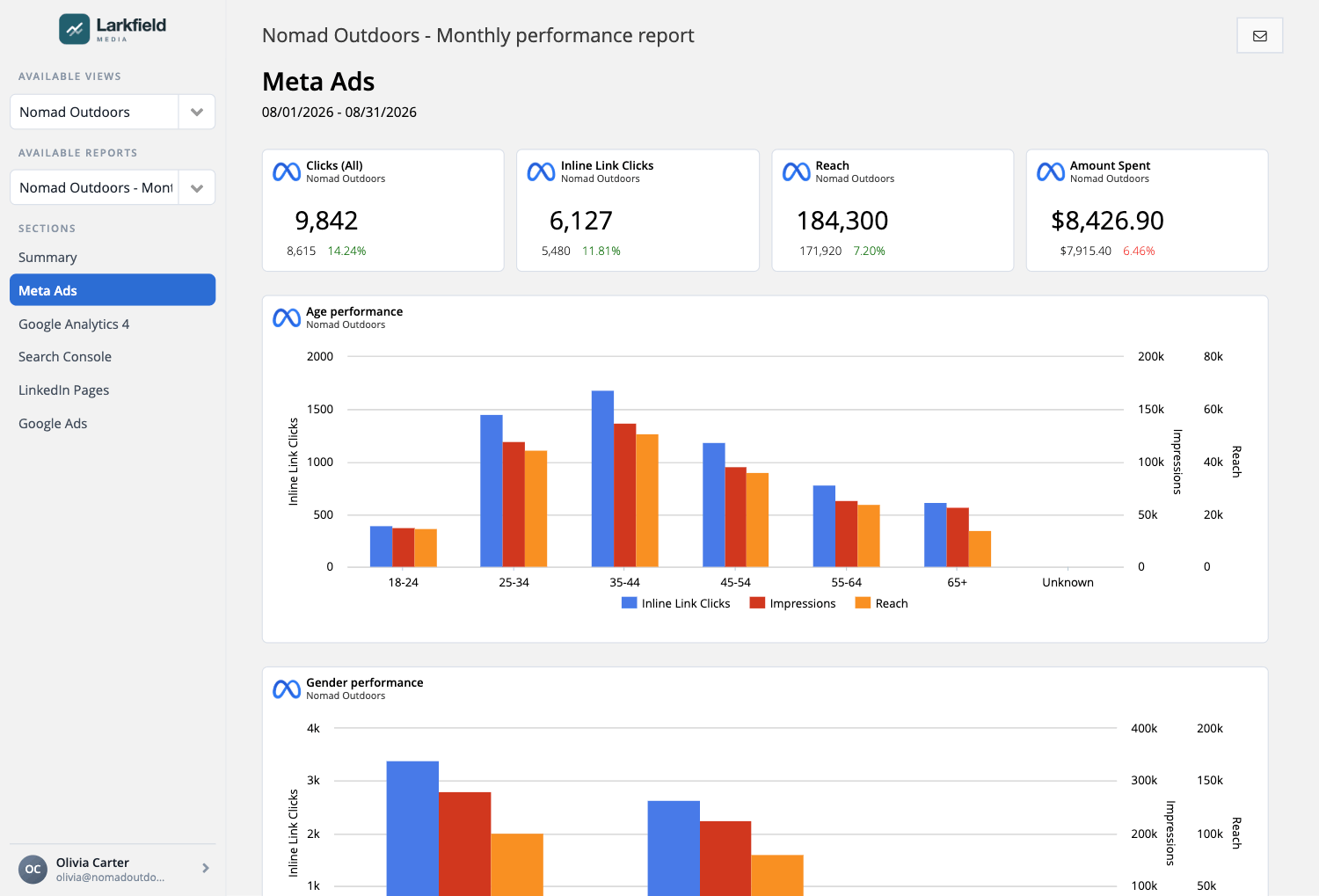
Group related metrics, such as paid media metrics in one row and conversion metrics in the next. Add a comparison with the previous period on every chart. This tells the reader whether each number is good or bad.
Once your data and layout are ready, turn on the AI features in your reporting tool. Start with summaries, because they save the most writing time. Add AI-built charts and alerts after that.
Reporting Ninja's AI reporting features include three tools. During the beta, every plan includes them, and so does the free trial. Each plan comes with a monthly allowance of AI credits, and higher plans get bigger allowances.
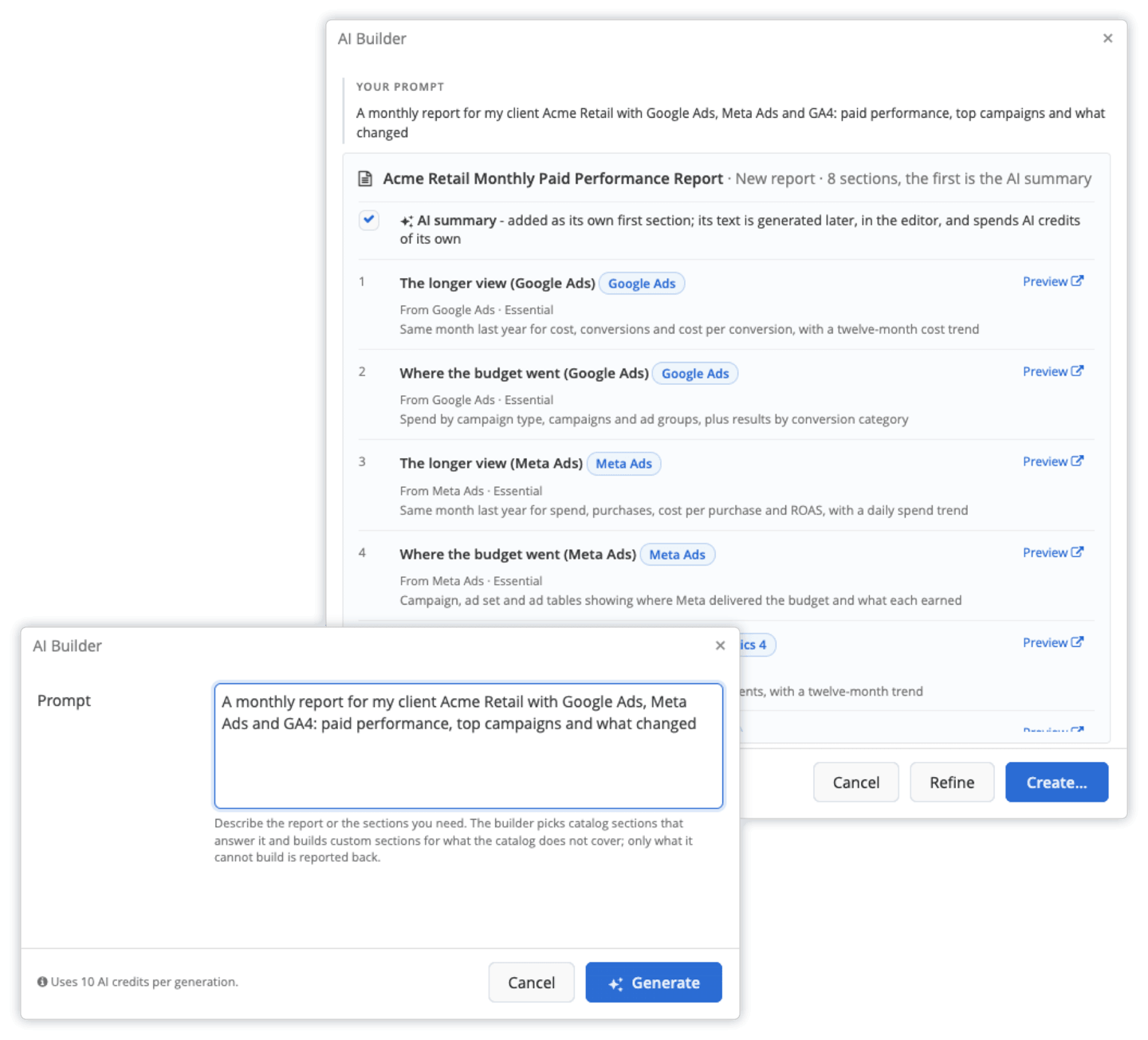
AI Builder: Describe a whole report in a sentence, and AI Builder proposes the sections, widgets, and data sources. Nothing is created until you approve it, and it tells you if part of your request doesn't fit your connected sources.
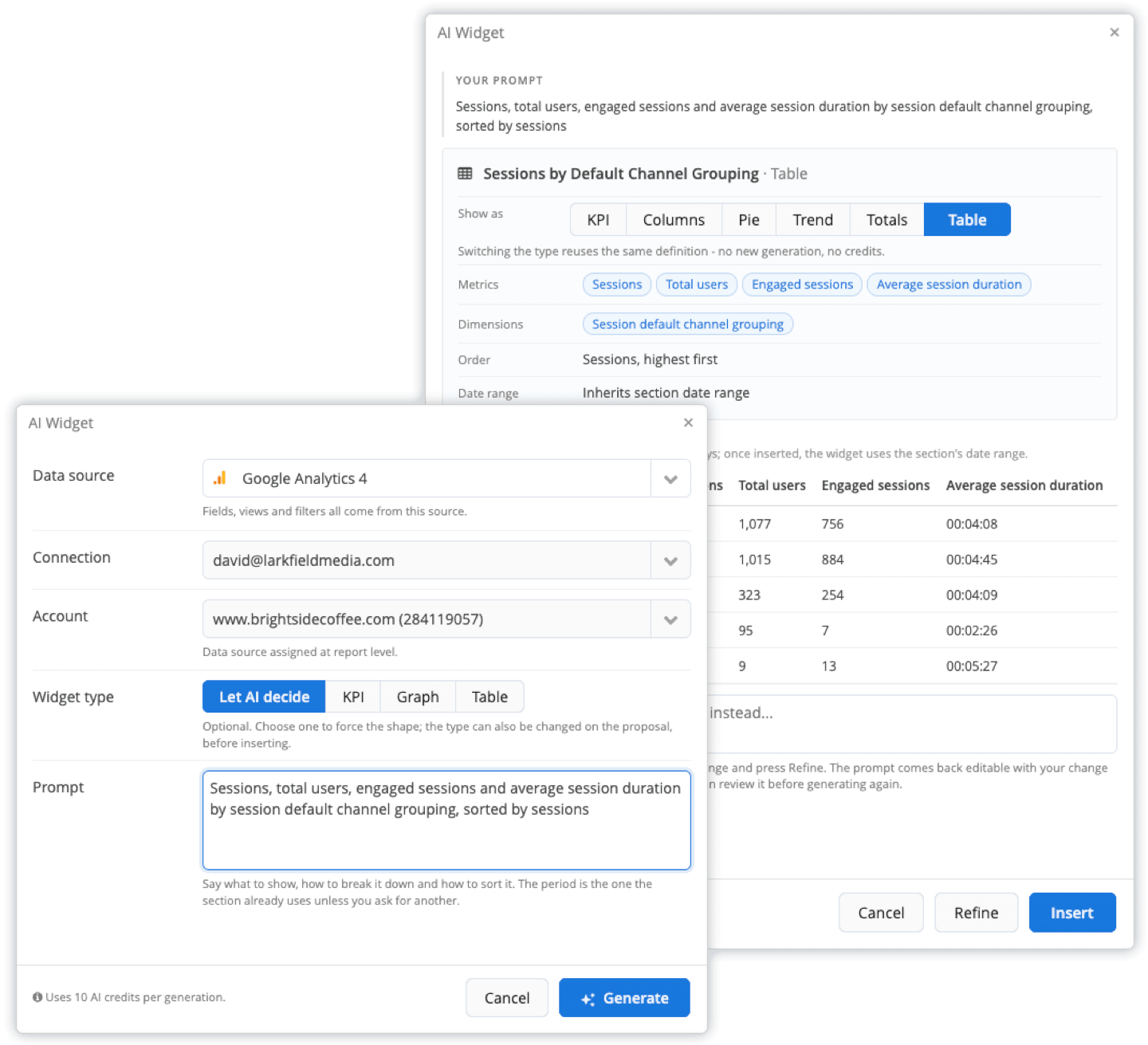
AI Widget: Describe one chart, such as spend and leads by campaign compared with last month. AI Widget shows you a sample from your own data before you add it, and you can change it with another request.
AI Summary: AI Summary writes analysis from the report's own numbers and can compare this period with the last one. The summary goes out with the PDF, the scheduled email, and the client portal, in the report's language.
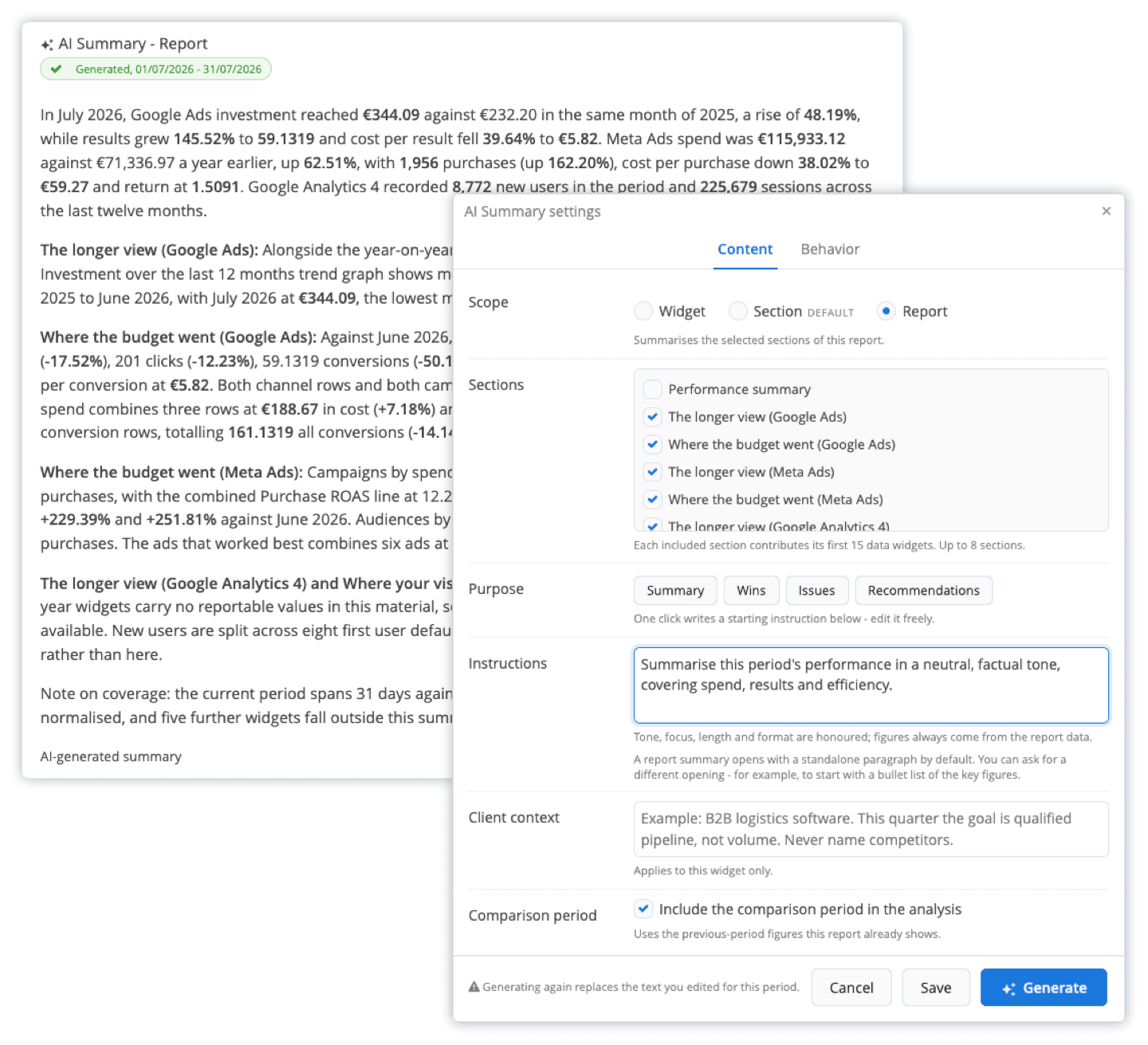
The AI reads only the accounts you've already connected, and it never writes to your ad or analytics accounts. If you edit a summary, Reporting Ninja keeps your version. You can also add your own instructions to control how summaries are written.
For alerts on sudden changes, check whether your reporting tool offers them. If it doesn't, Google Ads and Meta Ads both let you set automated rules that notify you when a metric crosses a limit.
Share the dashboard where your readers already work, and let it refresh on its own. An automated marketing dashboard pulls new data from each source, so nobody has to copy numbers by hand.
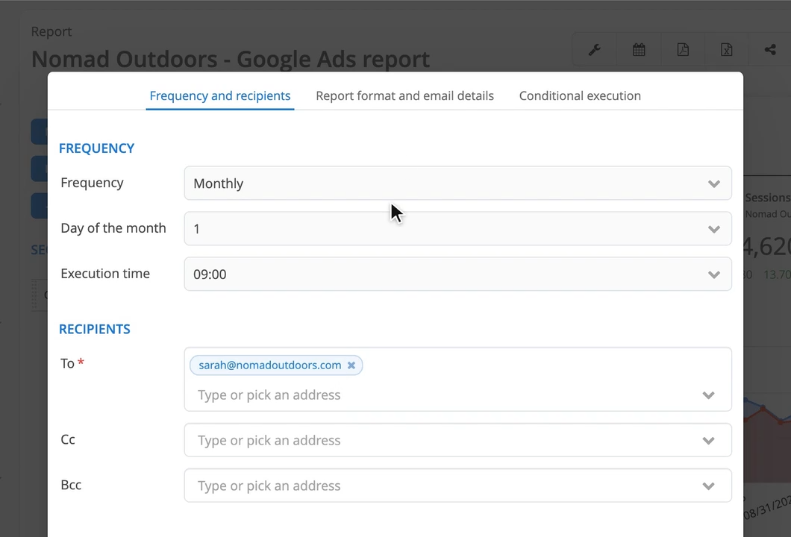
Next, schedule delivery so reports go out without anyone pressing send. In Reporting Ninja, you can email reports to clients every week or month. You can also give clients a login to a branded portal on your own domain.
Then set a review routine for your own team. A weekly check finds problems while there is still time to fix them. A monthly review is the right time to change budgets or goals, and automated marketing reports can deliver both on schedule.
Build your dashboard with Reporting Ninja: Connect your accounts once, turn on AI Summary, and schedule your first client report. Start a 15-day free trial with no credit card.
An AI marketing analytics dashboard stays useful when every chart supports a decision and every AI summary is verified. In our experience, dashboards usually fail because they try to serve too many readers or show too many numbers.
Here are some best practices to follow:
{{cta-block-v1}}
Agencies, in-house teams, and fractional CMOs use AI marketing dashboards for the same reason: to stop building reports by hand. In all three scenarios, the dashboard takes over the same four jobs: collecting the data, building the charts, drafting the analysis, and sending the report.
The problem: You run a 12-person agency with 20 clients, and most clients advertise on Google Ads, Meta Ads, and LinkedIn Ads. At the end of each month, your account managers log in to every account, export the numbers, and paste them into slides.
The solution: With an AI marketing dashboard, you connect each client's ad and analytics accounts once. You build one report as a template and copy it for each client, so every report has the same structure. AI Summary drafts the analysis for each client, and your account managers edit the draft instead of writing from a blank page.
Outcomes: The reports then go out on a schedule by email or through your branded client portal. Your team spends its time checking and improving the analysis. Adding a new client means copying the template and connecting that client's accounts.
The problem: You lead a three-person marketing team at an online store. Your ad spend is split between Google Ads and Meta Ads, your traffic data is on GA4, and your orders sit in Shopify. Each platform reports its own version of the results, so leadership keeps asking which number is right.
The solution: You connect all four sources to one dashboard and put CAC, ROAS, and revenue at the top. You choose Shopify as the source of record for revenue and label it on the dashboard. An AI summary at the top explains each week's changes in a few sentences.
Outcomes: Leadership now reads one view instead of four platform reports. Your weekly meeting stops being about which number is right and becomes about where to spend next week's budget.
The problem: You work as a fractional Chief Marketing Officer (CMO) for six companies, and each one wants a monthly board update. Each company uses different ad platforms and a different CRM, and each board expects a polished report under your name.
The solution: You build one executive dashboard as a template with spend, revenue, CAC, and pipeline value. Then you copy it for each company and connect that company's accounts. Each copy carries your own branding, and AI Summary writes a draft analysis in the language of each report.
Outcomes: You now review and edit six summaries instead of writing six reports from scratch. The reports go out by email on the first Monday of each month. When a founder asks a question between board meetings, you can ask Claude about their data through Reporting Ninja's MCP connector.
An AI dashboard can only be as accurate as the data and setup behind it. In our experience, most problems start with broken tracking, platforms that count the same thing differently, or people trusting AI summaries without checking them.
If you spend hours each week collecting numbers from separate ad accounts, start with a tool that connects them for you. If your team already works in Claude or ChatGPT, start with an MCP connector so the AI reads live data.
Reporting Ninja does both on every plan, from $20 a month billed annually, with AI Summary, AI Widget, and AI Builder included. Compare the plans on the Reporting Ninja pricing page to find your fit!
And then start your 15-day free trial, connect your ad and analytics accounts, and get your first AI-written report summary today.
An AI marketing dashboard is a live view of your marketing data. It uses AI to write summaries, flag changes, and answer your questions.
A normal dashboard only shows numbers. An AI dashboard also explains them, builds charts from typed requests, and can flag unusual changes.
No. Tools like Reporting Ninja connect your accounts without code, and you can build charts by typing a request in plain English.
Sometimes. The numbers are reliable when they come straight from connected sources. AI-written explanations can be wrong, so check each one before you publish it or send it across.
Sign up for a 15 days free trial. No credit card required.

Build and automate amazing custom reports in a few clicks. Save time, be more productive, impress your clients.