Analytics
November 12, 2026
MCP for marketing tools: step-by-step setup guide

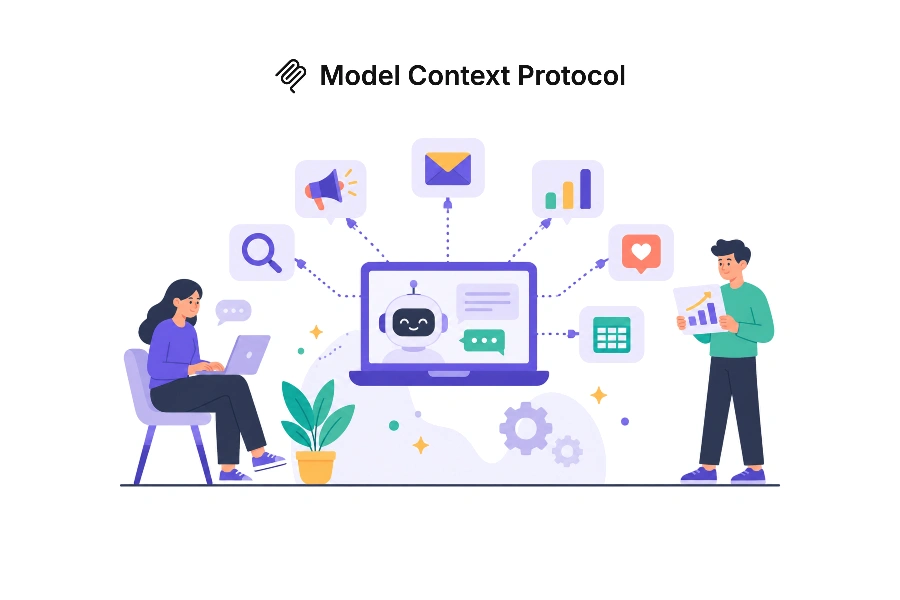

AI assistants like Claude can write a marketing report summary or find a trend in seconds. The problem is that they can’t see your Google Ads, GA4, or Meta accounts, so you still export reports and paste them into the chat. MCP for marketing removes that manual step.
MCP (Model Context Protocol) is an open standard that connects an AI assistant directly to your marketing tools. The assistant can read live data and, where you allow it, take actions in those tools.
This guide covers what MCP is, why it matters for marketers, the main use cases, what you can connect, how to get started, and what to watch for security.
MCP is an open-source standard for connecting AI apps to outside systems, such as data sources, tools, and workflows. With MCP, an AI assistant like Claude or ChatGPT can look up information and carry out tasks in other software.
Every MCP setup has three parts, and each one has a clear job in a marketing setup:

MCP and APIs work together. An API is the set of rules one product publishes so other software can read its data, and every API works in its own way. MCP gives AI apps one shared format, allowing the same server to work in Claude, ChatGPT, and any other MCP client.
MCP matters because your marketing data is spread across tools that don’t share it with each other. GA4 carries traffic, Google Ads and Meta Ads track spend, Search Console holds search data, and your CRM contains leads and sales.
To give that data to an AI assistant today, someone has to export each report, paste it into a chat, and fix the columns that don’t match. That work repeats every week, and the numbers are out of date as soon as you paste them.
Anyone who has tried marketing data integration by hand knows how long it takes.
With MCP, the assistant asks each tool for the figures itself. These are the main changes for your team:
You still decide what the numbers mean, while MCP handles the step of collecting them, leaving more time to analyze marketing data properly.
Most MCP use cases for marketing rely on the assistant reading several platforms in one conversation. Agencies get the most from the manual tasks they repeat for many clients. In-house teams get the most from questions that cover several channels at once.
Cross-channel reporting uses MCP to answer one question with data from several ad platforms. You ask for spend, conversions, and return on ad spend (ROAS) across Google Ads, Meta Ads, and LinkedIn Ads, and the assistant collects each figure from its own platform.
This works because the assistant can call several servers, or one server that covers several platforms, in the same chat. It then adds up the totals and compares the platforms side by side.
Reporting Ninja’s connector includes a guided cross-channel ROAS analysis that lists spend, revenue, and ROAS for each channel. The accounts groups you set up for cross-platform reporting also work in your AI assistant, so the chat and the client report use the same accounts and metrics.

Best for: Agencies that report on three or more ad platforms for each client.
Plain-language questions give anyone on the team a number without opening five dashboards or learning a query language. Type the question the way you would ask a colleague, and the assistant works out which accounts, fields, and dates it needs.
MCP makes this possible because each server tells the assistant what data it offers, such as which metrics and date ranges exist. The assistant picks the right request and turns the result into a short answer.
For example, you can ask, “Which Google Ads campaigns spent the most last month without a single conversion?” You can then ask a follow-up question about one of those campaigns in the same chat.
Best for: Account managers who answer client questions between meetings.
MCP helps with budget decisions because the assistant can check spend against a target while the month is still running. You can ask how a client is pacing against its monthly budget and where spend will land at month end.
The same access supports quick audits. The assistant can list spend, conversions, cost per acquisition (CPA), and ROAS for an account, compare them with the last period, and name the campaigns that spend without results.
Reporting Ninja’s marketing data MCP has guided prompts for budget pacing, PPC audits, and anomaly sweeps:
How MCP enables these analyses: It connects an AI assistant to Reporting Ninja's marketing data and tools. You can trigger predefined analyses, allowing the assistant to retrieve relevant data, follow the analysis workflow, interpret results, and present actionable insights without manually exporting data or building reports.
For a figure you want checked every day, our metric alerts email you when it goes above or below the value you set.

Best for: PPC managers who run several client accounts.
{{cta-block-v1}}
For SEO, MCP lets the assistant read Search Console and GA4 together. You can ask which pages get many impressions but few clicks, or which search queries bring visitors who leave quickly.
Those two lists show where a page needs a better title, more detail, or a new page on the topic. The assistant can group the queries by topic, so your next content plan comes from real search data.
Best for: SEO specialists and content teams who report every month.
Customer data is often split between ad platforms, GA4, an email tool, and an online store. With MCP, one question can put these figures side by side, such as Meta Ads spend next to Shopify sales and Klaviyo email revenue for the same week.
This view depends on clean tracking. If your UTM tags or conversion events don’t match across tools, the assistant will compare figures that measure different things, so check your tracking first.
Best for: E-commerce brands and in-house teams that sell online.
Recurring reports are where agencies save the most time with MCP. You ask the assistant to build a client’s monthly report, apply the client’s brand, and send it on a set date.
This needs an MCP server that can create and schedule reports, which goes beyond reading platform data. Reporting Ninja’s connector can do it once the account owner turns on write access, and the assistant builds an ordinary report that you can open, edit, and send.
Before anything is scheduled or shared with a client, the assistant asks for your yes. The finished report can then go out as scheduled reports by email and appear in your client portal.
Best for: Agencies that send the same report to many clients each month.
Start a 15-day free trial of Reporting Ninja. Connect Claude and ask for last month’s numbers across every ad platform you run.
Most marketing teams connect the same seven types of data to their AI assistant. Our marketing integrations cover every type, so one connection can reach each row.
There are two ways to connect these platforms. You can use one MCP server per platform, such as Google’s official Google Ads MCP server, which is read-only and needs a Google Cloud project and OAuth credentials before it runs.
A cleaner way is one connector that reaches many platforms. Reporting Ninja’s AI connector (MCP) works like this, so you connect all your marketing accounts once, and Claude, ChatGPT, or any MCP client can query them through one URL.
Developers who want the same data in their own scripts can use our REST API, which reads the same connections.
You can set up MCP for marketing without writing code. These six steps start with one task, so you see results before you connect every account.
Write down every platform your reports use, and note which accounts belong to which client. A typical list includes Google Ads, Meta Ads, GA4, Search Console, and a CRM or email tool.
Mark the two or three platforms you check most often. Connect those first, because they answer most of your daily questions.
For each platform, decide between its own MCP server and a connector that covers many platforms. A single server suits a team that works in one platform, such as a PPC freelancer who only runs Google Ads.

With three or more platforms, separate servers mean separate setups, sign-ins, and updates. A reporting platform with one MCP connection gives the assistant every connected account through one URL.
Start with one report you already build every week or month, such as a client’s paid ads summary. You already know what the right numbers look like, so you will notice an error quickly.
It’s best to start with reporting and analysis, because reading data carries little risk. Move on to actions such as building or scheduling reports once the answers match your source platforms.
First, connect your marketing accounts in Reporting Ninja so the connector has data to read. You only do this once, and every report, connector, and assistant uses the same connections.
To connect Claude to Reporting Ninja, open Reporting Ninja in Claude’s connector directory and click Connect. Sign in with your Reporting Ninja email and password as the account owner or an admin.
In any Claude chat, click + > Connectors and turn on Reporting Ninja. You can now ask about any client, channel, and date range.

For the ChatGPT MCP connector, open ChatGPT on the web and click Plugins > Add > Add custom MCP server. Paste https://mcp.reportingninja.com/mcp as the server URL, keep OAuth, leave the Client ID and Client secret fields empty, and click Create as a plugin.
When ChatGPT asks you to authorize, sign in to Reporting Ninja as the account owner or an admin. In a ChatGPT Business, Enterprise, or Edu workspace, an admin has to turn on developer mode before you start.
Ask your first question about a client and a date range you know well. Compare the answer with the platform’s own dashboard before you use it anywhere else.
When a prompt gives a useful answer, save the exact wording in a shared document. Your team can reuse it each month, so every report starts from the same questions.
Our connector also lists ready-made prompts, such as a period comparison and an account health check. They appear wherever your assistant shows a connector’s prompts.

Once the answers match your source platforms, decide what the assistant may change. Reading data is safe to leave on, but creating, scheduling, or deleting work needs a clear yes from a person.
Reporting Ninja’s connector never changes anything in your ad platforms. If the account owner turns on write access, the assistant can create, schedule, and share reports in your account, and deleted reports stay in trash for seven days.
The AI reporting tool inside our app follows the same rule. Our AI Builder proposes the sections, widgets, and sources for a report, and nothing is created until you approve it.
Connecting an AI assistant to marketing data gives it access to client accounts. Set clear limits before your team starts using it.
Reporting Ninja’s connector applies these limits by default. Only account owners and admins can connect it, it reaches only the accounts connected to that account, and it starts as read-only.
You can reset the connector’s key or revoke every AI connection from the AI connector (MCP) tab. The assistant receives only the figures it asks for, and what it keeps of the chat follows your AI provider’s own data settings, so check those too.
MCP also has limits that no connector removes. It can’t fix broken tracking, and an assistant can still misread a question, so treat its first answer as a draft to check.
Your AI assistant can only work with the data it can see. Connect your marketing accounts once in Reporting Ninja, add our MCP connector to Claude or ChatGPT, and ask about performance across every channel.
Every figure comes from each platform’s API, and the assistant can draft the client report from those same numbers. All our pricing plans include every feature, including the MCP connector, from $20 a month, billed annually.
Start with one client this week. Connect their accounts, ask your first question in Claude, and check the answer against the platform. Start your free 15-day trial.
MCP in marketing means using Model Context Protocol to connect AI assistants to platforms such as Google Ads, GA4, and HubSpot. The assistant can then answer questions and draft reports from live account data.
Sometimes. MCP is easier when you want an AI assistant to read data, because one server works across many AI apps. Direct API code still suits custom apps and scripts, and many MCP servers call platform APIs to get their data.
No. Hosted connectors let you add one URL in Claude or ChatGPT and sign in. Some open-source servers, such as Google’s official Google Ads MCP server, need a Google Cloud project and credentials, which takes more technical setup.
Yes, when you set it up with care. Use trusted connectors, keep access read-only by default, limit who can connect, and require approval before any action. The level of security depends on the server you choose, so read how each one handles your data.
Yes. You can use a separate server for each platform, or connect both through one connector. With Reporting Ninja’s MCP for Claude, you add the connector from Claude’s directory and query GA4, Google Ads, and your other channels in one chat.
Sign up for a 15 days free trial. No credit card required.

Build and automate amazing custom reports in a few clicks. Save time, be more productive, impress your clients.